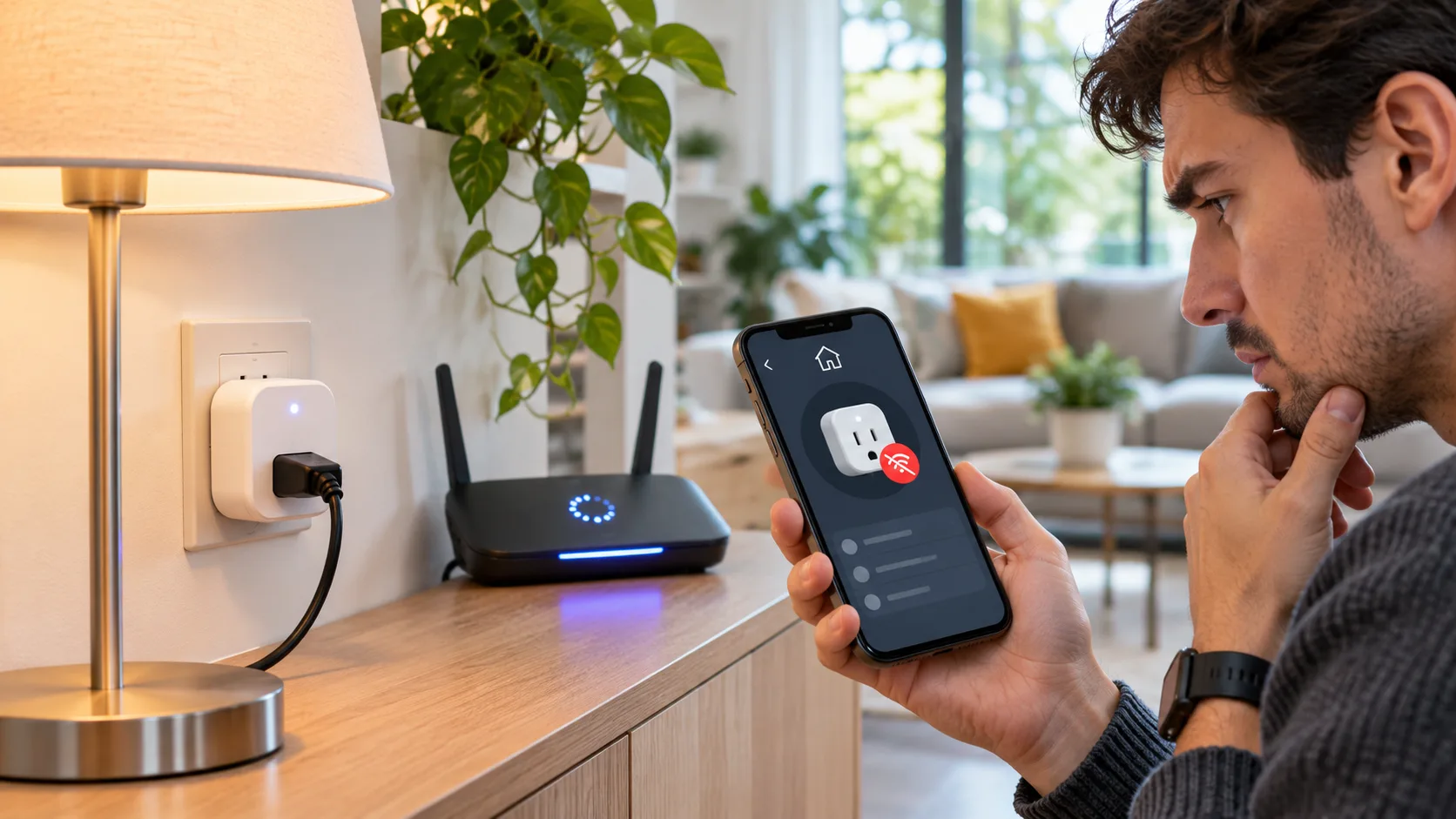
I rebooted the router to fix a slow connection. The Wi-Fi returned, yet the lamp stayed dark and the smart-home app called its plug offline. My first instinct was to hold the reset button. Then I noticed the TV and speaker were still reconnecting too: the router had not finished recovering.
An offline label can mean lost power, a delayed Wi-Fi association, changed network credentials, or stale app status. Exact lights and reset steps vary by model, so use the maker’s manual for device-specific actions.
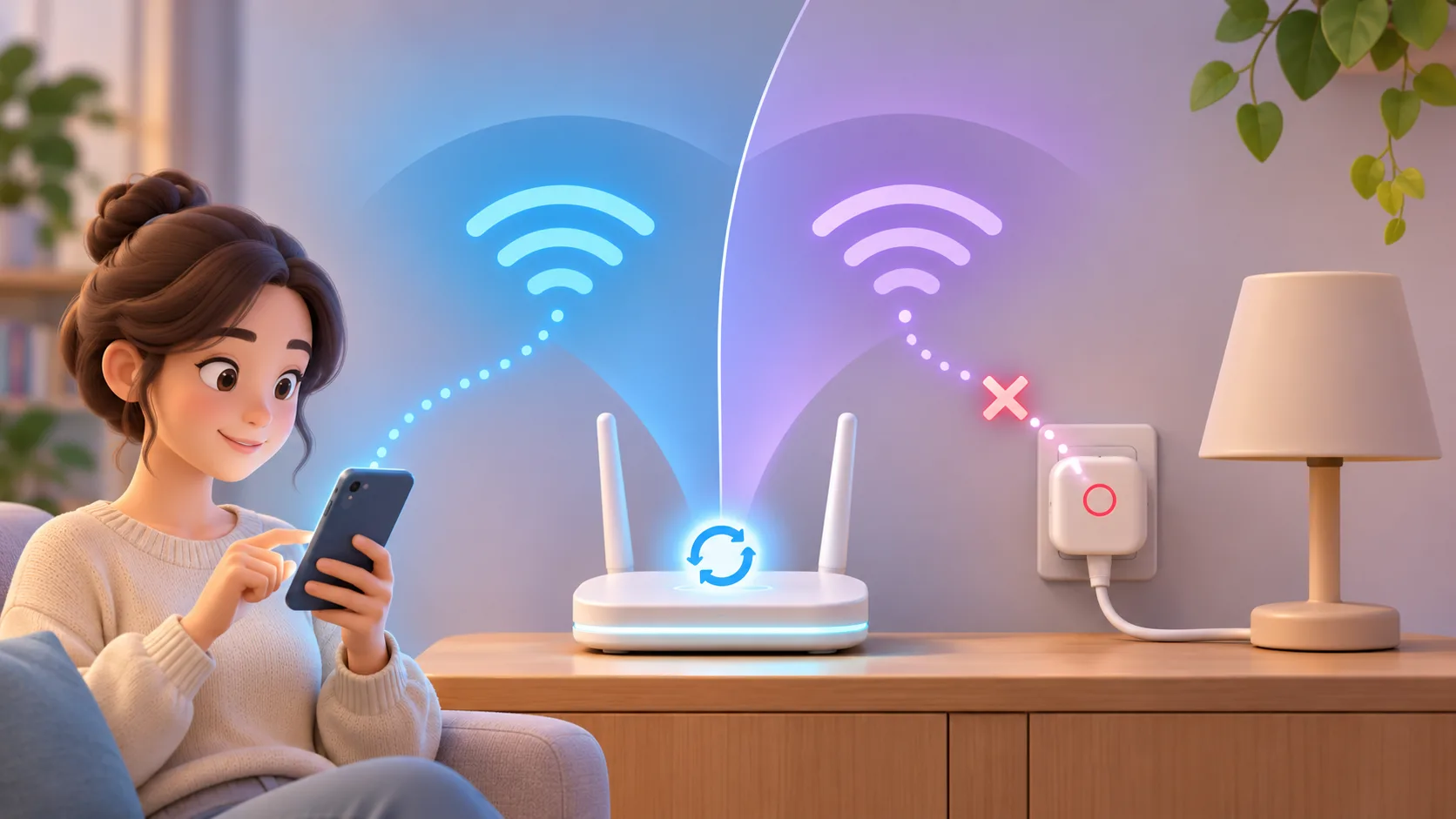
Check the house before the plug
Look at the plug’s indicator and test the same Wi-Fi from a phone. If several devices cannot reach the internet, focus on the router or service outage; wait until its connection is stable before refreshing the plug repeatedly. If the plug’s light is off, check the outlet and power, and stop using it if it feels hot, smells burnt, or is paired with a load beyond its rating.
| What you see | Likely place to check | Useful next step |
|---|---|---|
| Several devices are offline | Router or internet service | Let the network recover |
| Plug indicator is dark | Outlet or power | Check the outlet and manual |
| Only the app says offline | App or account state | Reopen and refresh the device list |
| Wi-Fi name or password changed | Saved network details | Follow the maker’s reconnect steps |
Find what changed during the reboot
If you changed the network name or password, the plug may still hold the old credentials. Check the product’s supported Wi-Fi band and security mode. Some plugs require 2.4 GHz, but do not assume that every model does. A combined network name may work differently by router and device; follow the manufacturer’s guidance.
Also check that the phone is on the home network and signed into the account that owns the device. Close and reopen the app, then consult the maker’s status page if the display still looks stale. Avoid repeatedly removing the plug: that can erase automations without fixing a router problem.
Pair again only after basic checks
When power and internet are stable but the plug will not rejoin, use the model-specific re-pairing instructions. Before a factory reset, confirm you know the Wi-Fi credentials, can access the account, and understand which schedules or room assignments may need rebuilding. Record the model, indicator pattern, router changes and app error for support. Never post your home Wi-Fi password or account recovery codes.
Use the symptoms to narrow the fault
The order of events is often more useful than the word “offline.” If the plug was working before the router restarted and several devices lost service at the same time, begin with the router and internet connection. If the plug’s indicator is dark while other devices are online, investigate power at the outlet. If the physical button still switches the connected lamp but the app does not, the plug may have power while its network connection or cloud status is unavailable. These clues do not prove a component has failed, but they help you avoid changing unrelated settings.
Keep the connected appliance in mind as well. A smart plug is intended for loads within its stated electrical rating; it should not be treated as a universal adapter for heaters, large motors, or equipment with a high start-up draw. Compare the rating printed on the device with the appliance label. If the plug, outlet, or cord is damaged, unusually warm, buzzing, or discolored, stop using it and contact the manufacturer or a qualified electrician. Network troubleshooting is not a reason to inspect live wiring.
If the router has separate names for 2.4 GHz and 5 GHz, check the plug’s manual before changing anything. Some models only join a 2.4 GHz network, while others use a combined network name successfully. A router setting change can affect phones, cameras, printers, and other household members, so write down the original configuration and know how to restore it. Avoid changing encryption or disabling security just to make a pairing screen advance. If the network is managed by a landlord, workplace, or building, ask its administrator before altering shared settings.
An access point, mesh node, or smart-home hub adds another possible link. Check whether only devices connected through one mesh point have dropped, or whether the hub itself is missing. If the app reports that it cannot reach a hub, resetting each plug is unlikely to fix the hub’s internet connection. Confirm the hub has power, inspect its network cable if it uses one, and look for an official service notice. Change one thing at a time so you can tell which action helped.
Preserve routines before changing the setup
Before removing a plug from a room or account, note its name, room, groups, timers, and automation conditions. Some systems store routines online; others depend on a hub or need a routine rebuilt after a factory reset. Save the schedule details in a private note or take screenshots that do not expose personal account information. This is useful when a plug controls a morning light, a pet’s room, or a holiday schedule.
If you decide to pair again, make sure the phone is on the intended home network and enable Bluetooth or local-network access only as the maker requires. Follow the app prompts and keep the plug within the recommended range of the router during setup. Do not repeatedly press a reset button with guessed timing: some products use different short and long presses for pairing and factory reset. A reset can remove sharing and automations, so read the model’s instructions first.
After pairing, test one simple action before restoring every routine. Switch the plug once in the app, then check the appliance. If remote access fails while local control works, the issue may involve the account’s cloud connection rather than Wi-Fi at the outlet. If the plug reconnects and drops again, note the interval and whether other devices on the same access point also disconnect. That pattern is more useful to support than repeated resets.
When contacting support, provide the model, app version, router model if known, whether the Wi-Fi name or password changed, the indicator pattern, and the exact error text. Include the sequence of events, not just “it stopped working.” Share details only through the manufacturer’s official support channel. Crop screenshots to hide your email, home network name, address, and unrelated device names.
When the connection is restored, check more than the app badge. Confirm the plug responds to a single command, that the connected device behaves normally, and that an automation still runs at its intended time. A manual toggle working does not guarantee the schedule is intact. If an automation uses sunrise, a presence sensor, or a separate hub, inspect that condition too; it may be the part that lost connection. Make a small test with a harmless lamp before relying on the plug for an important routine.
One last check is whether the home network has a guest network or client-isolation setting. Some routers keep devices on a guest network from discovering one another, even when both appear to have internet. If you recently moved the plug to a guest SSID, the phone app may not be able to find it locally. Do not turn off network isolation across the whole home as a quick fix; that setting can be part of the network’s security design. Check the router documentation and use the normal household network if the plug requires local discovery.
After everything reconnects, give the plug a clear name that identifies its room and purpose, such as “hall lamp,” without including personal details. A descriptive name makes future troubleshooting easier, especially if several outlets look identical in the app. Keep a note of the model and installation location in a private household record. If the same device repeatedly drops while other products stay connected, that pattern points support toward a plug-specific issue rather than a general outage.
Common questions
How long should I wait after a router reboot? Wait until other devices are online, then give the plug time to reconnect; the interval varies by model and network.
Will a reset delete schedules? It may require setup and automations again. Check the device’s manual and app before resetting.
At a glance
Check whether the network, outlet or app is the source of the offline status.
Re-pair only after the connection is stable, using the instructions for your model.